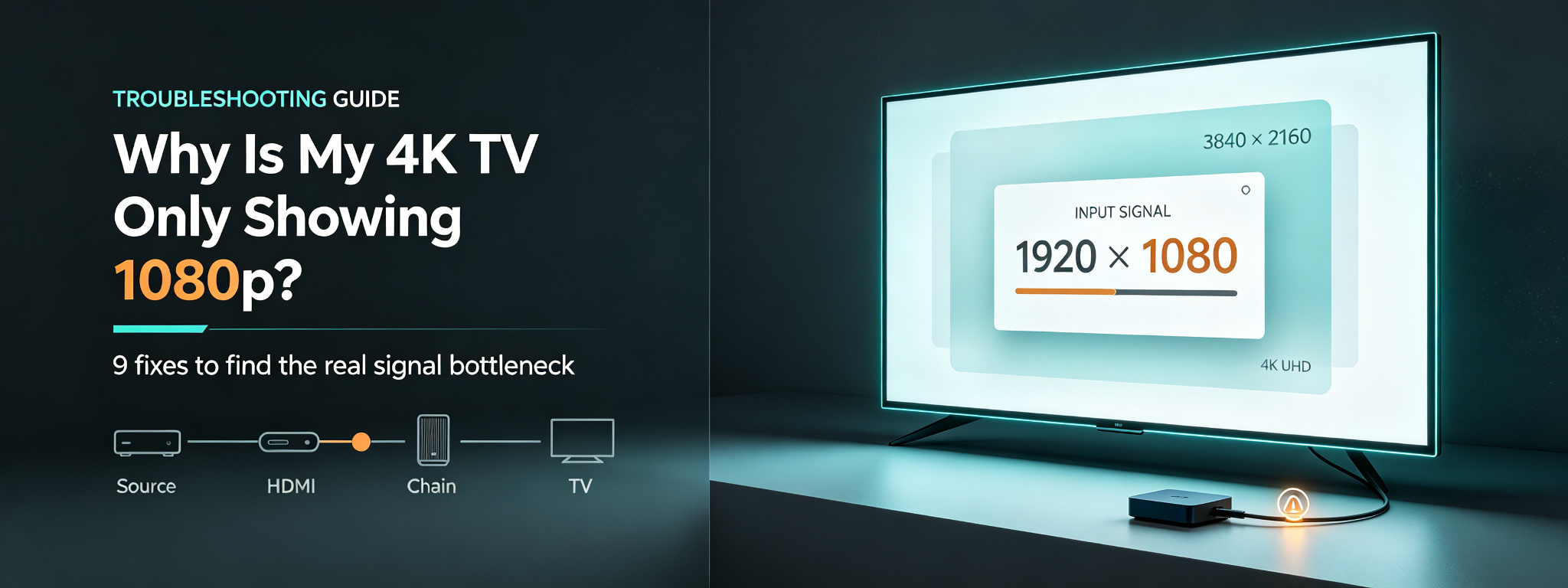
You have a 4K TV, but the picture information says 1080p.
That can be confusing. The television supports 4K, the streaming device may support 4K, and the content may even be labeled UHD. So why are you still getting a 1080p signal?
In most cases, the answer is not that your TV suddenly stopped being a 4K television.
The problem is usually somewhere in the signal path.
A typical setup can include a TV, streaming device, HDMI cable, soundbar, AV receiver, HDMI switch, app, and video source. Every part of that chain can affect the resolution that finally reaches the screen.
The easiest way to solve the problem is to stop changing random picture settings and work through the chain one piece at a time.
This guide explains the most common reasons a 4K TV shows 1080p, how to identify the actual bottleneck, and how to confirm whether your setup is really receiving a 4K signal.
A television being capable of 4K does not mean every signal it receives will be 4K.
Consumer 4K televisions generally use a 3,840 × 2,160 pixel display, while 1080p uses 1,920 × 1,080 pixels.
The source device still has to send a 4K signal.
For example:
4K TV + 1080p streaming device = 1080p output
And:
4K TV + 4K device + 1080p content = lower-resolution source being displayed on a 4K screen
The TV may upscale that lower-resolution material so that it fills the panel, but upscaling does not change the original source into native 4K.
This distinction is important because there are actually three different questions:
Can the TV display 4K?
Can the source device output 4K?
Is the current content actually being delivered in 4K?
A good troubleshooting process answers those questions separately.
The most common causes are:
The source device is configured for 1080p.
The source device does not support 4K output.
The TV is connected through an HDMI input with limited capabilities.
The HDMI connection cannot reliably carry the required signal.
A receiver, soundbar, switch, or splitter is limiting the signal.
The TV's HDMI input mode needs to be enabled or changed.
The streaming app or video is only delivering 1080p.
The source device has incorrectly detected the TV's capabilities.
A temporary HDMI handshake or software issue is causing the system to fall back to a safer resolution.
Current troubleshooting guidance from display and device manufacturers points to the same basic principle: the final resolution depends on the capabilities of the complete connection, not simply the television panel.
Start with the simplest possibility.
Check the exact model number of your television.
Do not rely only on the size of the screen or the fact that it is a Smart TV. Manufacturers often use very similar model names across different resolutions and product generations.
Look in the TV's information menu or check the manufacturer's specifications.
You are looking for:
4K
UHD
Ultra HD
2160p
3840 × 2160
A native 4K UHD television generally has a 3,840 × 2,160 display.
A Full HD television uses 1,920 × 1,080.
If the physical panel is 1080p, no setting can make it become a native 4K display.
Move on.
Do not spend time adjusting sharpness, contrast, brightness, or color. Those settings affect how the picture looks, but they do not change the resolution of the incoming signal.
The next question is:
What is actually sending the video to the TV?
It could be:
a streaming stick
Android TV box
Apple TV
Roku device
media player
Blu-ray player
computer
set-top box
another HDMI source
Check the exact model.
A device being described as a "streaming device" does not automatically mean it supports 4K.
Older hardware may be limited to 1080p.
Even when the device supports 4K, its output settings may have been changed to 1080p.
Open the device's display settings and look for options such as:
Display Resolution
Resolution
Video Output
Screen Resolution
Display Mode
If you see:
1920 × 1080
or
1080p
that is a strong indication that the source device is currently outputting Full HD.
Where supported, try Automatic or select a 4K output such as 3840 × 2160.
Automatic detection can be useful because the source device attempts to select a display mode supported by the connected equipment rather than remaining locked to a manually selected resolution. Device-specific 4K troubleshooting guidance commonly recommends checking the source model and its display setting before moving on to more complicated fixes.
This is one of the most commonly overlooked checks.
Not every HDMI input on every TV necessarily provides the same features.
Depending on the television, a particular HDMI port may be designated for:
4K
UHD
Enhanced HDMI
HDCP
higher bandwidth
specific refresh rates
The labels vary between manufacturers.
Look around the HDMI ports on the television.
You might see markings such as:
4K
UHD
Enhanced
HDMI 2.1
HDCP 2.2
If one input is specifically identified for high-resolution sources, connect your streaming device directly to that port.
Then restart the source device and check the signal again.
Some TV models support higher-bandwidth or protected 4K signals only through particular inputs, so assuming all HDMI ports are identical can lead to unnecessary troubleshooting.
Do not change the cable and the device at the same time.
Simply move the existing source to another HDMI input.
If the resolution changes from 1080p to 4K, you have already narrowed down the problem.
HDMI cables are often blamed too early, but they are still worth testing.
A cable that is damaged, poorly connected, or unable to reliably handle the required signal can cause problems such as:
1080p fallback
intermittent black screens
flickering
signal dropouts
HDR disappearing
unstable resolution
repeated connection failures
The important point is not that you need the most expensive cable.
You need a cable that can reliably handle the requirements of your particular setup.
This becomes more important when you combine:
4K + HDR + high refresh rate
A simple diagnostic test is to replace the existing cable temporarily with a known-good compatible cable.
Connect the source directly to the TV.
Then test again.
Current HDMI guidance from Dell, for example, distinguishes the capabilities of HDMI generations and notes that the maximum supported resolution and refresh rate depend on the HDMI version and the specific hardware implementation.
Unplug both ends.
Reconnect them firmly.
Make sure the connector is completely inserted.
If moving the cable causes the picture to disappear or the resolution to change, the connection itself deserves attention.
This is one of the most valuable troubleshooting tests you can perform.
Consider a setup like:
Streaming Device → AV Receiver → TV
or:
Streaming Device → HDMI Switch → Soundbar → TV
Every device between the source and TV becomes part of the signal path.
If one of those components does not support the required signal, the source may fall back to 1080p.
Disconnect the intermediate equipment temporarily.
Connect:
Streaming Device → TV
Then check the resolution.
If 4K suddenly works, your TV and source device are probably capable of the required signal.
The problem is likely somewhere in the equipment you bypassed.
Now reconnect the equipment one component at a time.
For example:
Test 1
Streaming Device → TV
Test 2
Streaming Device → Soundbar → TV
Test 3
Streaming Device → Receiver → TV
Test 4
Streaming Device → HDMI Switch → TV
As soon as the signal falls back to 1080p, you have identified the area that needs investigation.
This direct-connection method is also recommended in current device troubleshooting guidance because it removes intermediate equipment from the HDMI chain and makes the source of the limitation easier to identify.
Some TVs include an HDMI setting that determines how the input handles higher-bandwidth video formats.
The name depends on the manufacturer.
You may see something similar to:
Enhanced Format
Enhanced HDMI
UHD Color
Deep Color
Input Signal Plus
HDMI Signal Format
The exact menu is different between TV brands and model generations.
The important thing is to look at the settings for the specific HDMI input that your source is using.
If the TV offers an enhanced or high-bandwidth mode, check whether it is enabled.
Then restart the source device.
This can matter when you're trying to use combinations such as 4K and HDR, because the HDMI input configuration can determine which signal formats the television accepts from that source.
Do not copy a menu path from another TV model and assume your television has the same setting.
Manufacturers use different names.
Look for the feature rather than a specific menu sequence.
This is where many perfectly good 4K setups get blamed for an issue that isn't really there.
A 4K TV does not automatically turn every video into native 4K.
A streaming platform can provide different resolutions depending on:
the specific title
the source
the device
the app
the available video format
the connection
the content itself
You can therefore have:
4K TV + 4K-compatible device + perfect HDMI connection
and still watch a video at 1080p.
That is normal.
Choose content that is clearly identified as:
4K
UHD
or another equivalent high-resolution format.
Then check the playback information when available.
Also check the TV's input information.
This gives you a much more reliable answer than judging picture sharpness by eye.
A good 1080p image can look surprisingly sharp on a modern 4K television, especially when the TV has effective upscaling.
Sometimes there is nothing obviously wrong with the equipment.
The devices simply fail to negotiate the correct signal after being connected, disconnected, updated, or moved between inputs.
This is commonly described as an HDMI handshake problem.
Instead of changing several settings at once, perform a clean reset.
Turn off:
TV
Streaming device
Soundbar or receiver
HDMI switch or splitter
Then disconnect the relevant HDMI connections.
Reconnect them securely.
Power the TV on first.
After the TV is running, turn on the intermediate equipment.
Then start the source device.
Check the resolution again.
This can force the devices to exchange their display capability information again.
It is particularly worth testing after:
changing HDMI ports
changing HDMI cables
adding a receiver
adding a soundbar
installing a switch
updating firmware
changing video output settings
This is the most important step in the entire process.
Instead of asking:
"Does my TV support 4K?"
ask:
"What resolution is the TV actually receiving?"
Many modern televisions provide an information screen showing details about the current input signal.
Depending on the manufacturer, you may find:
resolution
refresh rate
HDR status
HDMI input
signal format
The menu name varies, so check your TV's own information or signal-status section.
If the TV reports:
1920 × 1080
the current input is 1080p.
If it reports:
3840 × 2160
the TV is receiving a 4K/UHD signal.
That difference is much more useful than simply looking at the picture.
When troubleshooting a complicated setup, simplify it.
Start with:
4K TV + 4K-capable source + known-good HDMI cable
Connect them directly.
Then check the TV's incoming signal.
The basic TV/source connection is working.
Reconnect your equipment one at a time.
Check:
The source device's output resolution.
The exact HDMI port.
The TV's HDMI input mode.
The HDMI cable.
Whether the source actually supports 4K.
Whether the content being tested is available in 4K.
This process is much faster than changing ten TV picture settings and hoping something works.
Use this checklist in order.
☐ Confirm the exact TV model supports 4K.
☐ Verify the panel resolution is 3840 × 2160.
☐ Check the TV's input information.
☐ Confirm the exact model supports 4K.
☐ Check the output resolution.
☐ Try Automatic display detection.
☐ Restart after changing the output mode.
☐ Try another HDMI input.
☐ Look for a port labeled 4K, UHD, Enhanced, or similar.
☐ Check the HDMI input's advanced settings.
☐ Reseat both ends.
☐ Test another known-good cable.
☐ Remove unnecessary adapters during testing.
☐ Bypass the soundbar.
☐ Bypass the AV receiver.
☐ Bypass the HDMI switch.
☐ Bypass the splitter.
☐ Test the source directly on the TV.
☐ Test a known 4K/UHD title.
☐ Check the playback information.
☐ Test another app or source.
☐ Check the TV's signal information.
☐ Confirm the incoming resolution is 3840 × 2160.
☐ Check HDR separately from resolution.
There is another possibility that is easy to miss.
Your TV may actually be receiving 4K, but the picture still looks softer than expected.
In that situation, the problem may not be resolution at all.
Possible causes include:
A video may technically be output at 4K while the original content has been heavily compressed or sourced from a lower-quality master.
Resolution tells you how many pixels are being delivered.
It does not tell you how much information has been preserved in those pixels.
Two videos can both be 3840 × 2160 while looking noticeably different because of bitrate, compression, motion, and source quality.
Some content displayed on a 4K television is upscaled from lower resolution.
Different televisions handle this differently.
The visible difference between 1080p and 4K becomes harder to appreciate from farther away, particularly on smaller screens.
Noise reduction, sharpness, motion processing, and other image-processing features can change how detailed or natural the picture appears.
So there are two separate problems:
TV receiving 1080p
and
TV receiving 4K but picture quality still looking disappointing
Do not troubleshoot them as though they are the same issue.
The same principle applies when watching IPTV or other streaming content through a Smart TV, Android TV box, Fire TV device, media player, or similar hardware.
A typical chain can look like:
Streaming source → app → device → HDMI → TV
A 4K TV only represents the final display.
For actual 4K playback, the relevant parts of the chain need to support the required signal.
For example, you might have a 4K television connected to a 4K-capable Android TV box, but the device is configured for 1080p.
In that case:
4K TV
does not automatically mean:
4K output
Likewise, a device can be configured correctly while the particular stream or video remains 1080p.
This is why the best test is always to check the actual incoming signal rather than relying on the TV model alone.
No.
HDMI version is only one part of the overall setup.
Different HDMI generations have different bandwidth capabilities, but the actual result depends on the source, display, cable, and other equipment in the signal path.
For example, current manufacturer guidance commonly distinguishes HDMI 2.0 as supporting up to 4K at 60Hz and HDMI 2.1 as supporting higher-bandwidth combinations such as 8K at 60Hz or 4K at 120Hz, subject to the capabilities of the specific hardware.
You therefore should not assume:
HDMI 2.1 = automatically better picture
or:
HDMI 2.0 = cannot display 4K
Those statements are too broad.
The question is:
What resolution, refresh rate, HDR format, and other features are you trying to send through the complete HDMI chain?
A properly functioning HDMI connection is digital.
That means replacing a functioning cable with a more expensive one does not automatically create a sharper picture.
A cable becomes relevant when the existing connection is unable to reliably carry the required signal or when it is damaged or unstable.
For troubleshooting, the best approach is not:
"Buy the most expensive HDMI cable."
It is:
"Test the setup with a known-good compatible cable."
If the problem disappears, you have useful evidence that the previous cable or connection was part of the problem.
Yes.
A 4K television can display 1080p content.
The television may upscale the image to fit its 4K panel, depending on the TV and source.
This is why you can watch HD video on a 4K TV without having a technical problem.
The important distinction is:
1080p source displayed on a 4K screen
versus
native 4K source displayed on a 4K screen
They are not the same thing.
The most common causes are the source device's output setting, HDMI port, cable, intermediate equipment, TV HDMI mode, or the actual video source. Start by connecting the source directly to the TV and checking the incoming signal.
The streaming device may be configured for 1080p, may not support 4K, or may be negotiating a lower resolution because of the HDMI connection. Check the device model, output settings, HDMI port, and direct connection.
Yes. A cable or connection problem can prevent a higher-bandwidth signal from working reliably. Testing with a known-good compatible cable is a useful diagnostic step.
The receiver may be limiting or failing to pass the required signal. Connect the source directly to the TV. If 4K works directly, investigate the receiver and the other equipment in the HDMI path.
Different HDMI inputs can have different capabilities depending on the TV model. Check the ports for labels such as 4K, UHD, Enhanced, HDCP, or HDMI 2.1.
The source may be heavily compressed, the original video may not have high-quality detail, the content may be upscaled, or the TV's picture processing may affect perceived sharpness.
No. HDR and resolution are separate characteristics. A video can be 1080p HDR or 4K SDR, depending on the source and equipment.
This can happen when the source and display fail to maintain the desired HDMI mode, when an intermediate device limits the connection, or when the source falls back to a compatible resolution.
Use the TV's signal or input information screen when available. A reading around 3840 × 2160 indicates a 4K/UHD input signal.
No. An 8K-capable television or device can still output or receive 1080p or 4K depending on the source, settings, HDMI connection, and content.
When your 4K TV only shows 1080p, the fastest solution is to stop treating the television as the only component involved.
Think of the setup as a chain:
Source → Device → HDMI → Intermediate Equipment → TV
Then find where the resolution changes.
The most effective troubleshooting sequence is:
Confirm the TV is 4K.
Confirm the source supports 4K.
Check the source output setting.
Try the correct HDMI port.
Test a known-good HDMI cable.
Bypass receivers, soundbars, switches, and splitters.
Test known 4K content.
Check the TV's actual incoming signal.
If the TV reports 3840 × 2160, the basic 4K signal is reaching the display. At that point, if the picture still does not look as good as expected, investigate the source quality, compression, upscaling, viewing distance, and picture processing rather than continuing to troubleshoot resolution.
In other words, don't ask only:
"Is my TV 4K?"
Ask the more useful question:
"Is my TV actually receiving 4K right now?"
That one distinction can eliminate most of the guesswork.

