Last updated September 21, 2026
For a long time, my IPTV setup on a Firestick was one of those things I only noticed when it stopped working properly.
During the day, everything seemed fine. At night, especially when I wanted to watch live sport, the same setup could become much less reliable. I kept looking at download speed because the number always looked good. That turned out not to tell me very much.
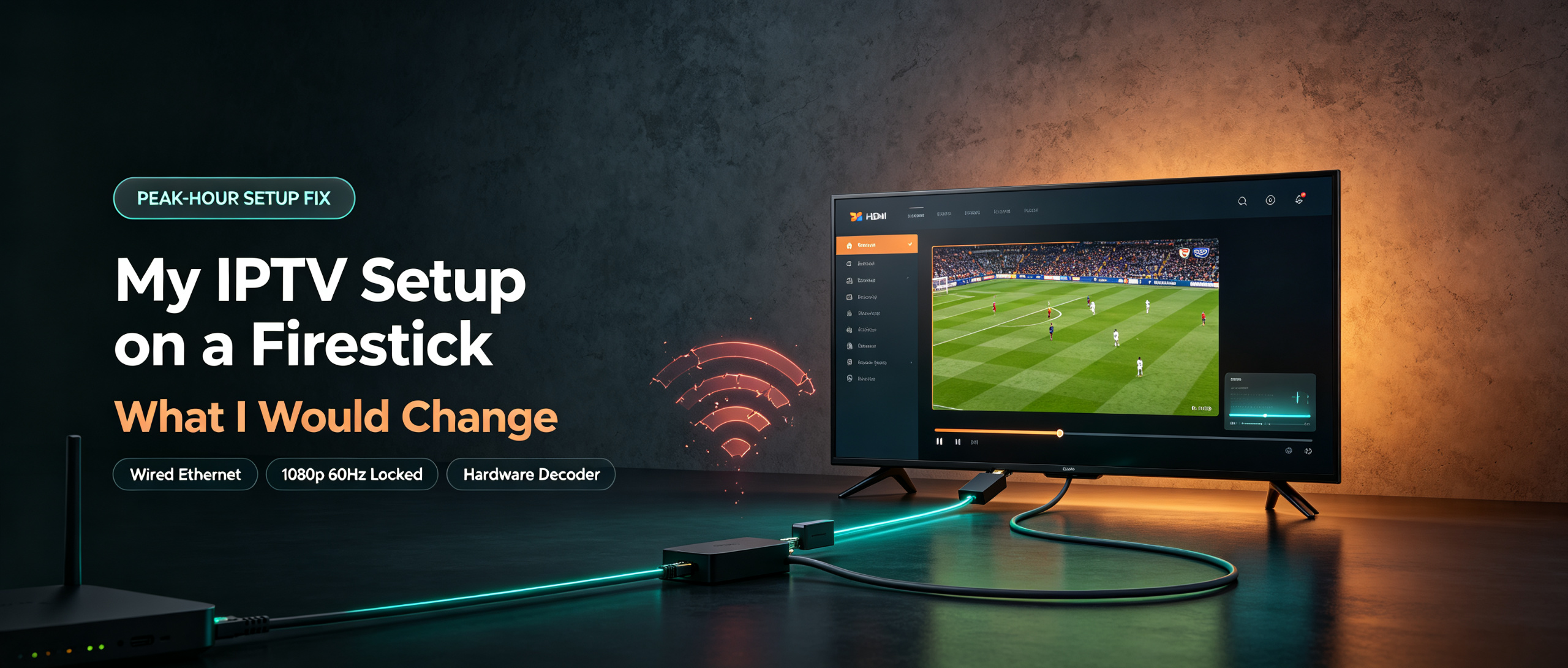
The setup I use now is fairly simple: a Fire TV Stick 4K Max, Ethernet where I can run it, TiviMate, hardware decoding, and a fixed display mode rather than letting the device switch modes unnecessarily.
I would not treat that as a universal recipe. A Firestick, TV, router and player can behave differently from one setup to the next. What has been useful is the order of the troubleshooting. I deal with the connection first, then the display output, then the player settings.
That saved me from changing half the system every time a channel froze.
If you are starting from zero, the installation itself is covered in how to set up IPTV on Firestick. This guide is more about the things that tend to go wrong after everything is already installed.
It is not an elaborate setup. Most of the useful changes were fairly boring ones.
| Part | What I use | Why |
|---|---|---|
| Device | Fire TV Stick 4K Max (2nd gen) | More memory and storage than the cheaper sticks |
| Network | Ethernet where practical | Takes Wi-Fi interference out of the equation |
| Player | TiviMate | Good guide and playback controls |
| Decoder | Hardware | Uses the device's hardware decoding path where supported |
| Display | Fixed output on my setup | Avoids unnecessary mode changes |
| Buffer | Small on wired, medium when testing Wi-Fi | Keeps channel changes responsive |
| Power | Supplied power adapter | Gives me a consistent power source |
| Second TV | Separate connection when required | A second device does not increase the subscription's connection limit |
There are a few things I deliberately do not build the setup around.
I do not use a huge buffer just because a stream has frozen before. I do not add a VPN before establishing what the actual network problem is. And I do not expect a 4K Firestick to somehow become an 8K device because a service advertises an 8K channel.
Those three assumptions caused more confusion than they solved.
My first instinct was to run another speed test.
The result was usually good, which seemed reassuring. The problem was that a speed test measures throughput under test conditions. It does not tell you what the connection feels like when several devices are active, wireless airtime is busy, or latency increases because queues are filling up.
That matters to live streaming.
A stream can have enough overall bandwidth and still stop briefly if the next part of the video is delayed long enough for the player to catch up with the end of its buffer.
This is where a bufferbloat test is useful. Waveform's test looks at latency while the connection is idle and then while it is under load, rather than only giving you a download-speed number. Waveform bufferbloat test
I also found a much simpler test more useful than repeatedly running speed checks.
Pick one channel that you know normally works and watch it during your usual evening viewing period. Then try the same channel again at a quieter time.
Keep everything else the same.
You are looking for a pattern, not a perfect benchmark.
If a channel is consistently smooth during the day and regularly struggles in the evening, that is a good reason to investigate the network path before digging through player settings.
It still does not prove where the problem is. The congestion could be inside your home, somewhere between your router and ISP, or further upstream.
In my case, there was plenty going on inside the house. A tablet was streaming, a laptop was syncing files and phones were using the same wireless network. The Firestick was sharing the same Wi-Fi environment at exactly the time I wanted it to stay stable.
The internet connection itself was not necessarily the whole story.
When the router is close enough, this is the first change I would try.
An Ethernet adapter does not make the Firestick's internet connection magically faster. What it does is remove the wireless hop between the stick and the router.
That turned out to matter more to me than the headline speed.
Wi-Fi is shared. Phones, tablets, laptops, smart home devices and the Firestick all have to compete for airtime. With Ethernet, that particular source of competition disappears.
A 100 Mbps wired connection is already plenty for ordinary single-stream viewing, so I would not choose an adapter simply because someone says IPTV needs gigabit Ethernet. Amazon's device specifications list 10/100 Mbps Ethernet for a number of Fire TV Stick configurations using external Ethernet hardware, while the second-generation Fire TV Stick 4K Max has 2 GB of RAM and 16 GB of storage. Amazon Fire TV device specifications
The benefit is consistency.
After connecting Ethernet, make sure the Firestick is actually using the wired connection during your test. Otherwise it is possible to solve a problem and then accidentally reintroduce it through Wi-Fi later.
I also keep the supplied power adapter in the setup. The Ethernet adapter is part of the overall connection and power arrangement, so I prefer removing the TV's USB power supply as another variable.
And I would not worry about seeing a 100 Mbps Ethernet link. For one Firestick, the number itself is not the interesting part.
When Ethernet is impractical, I would try 5 GHz Wi-Fi before buying extra hardware.
6 GHz is also worth considering when both the router and device support it.
The physical position of the Firestick matters as well. A small device pushed behind a large television is not always sitting in a great place for wireless reception. An HDMI extender can sometimes help simply by moving the stick away from the back of the panel.
A fixed DHCP lease can also make a home network easier to manage, but I would treat it as a secondary configuration step rather than assuming a lease renewal is the cause of every intermittent disconnection.
For more ideas on diagnosing buffering when your speed test looks healthy, see IPTV buffering with fast internet.
This looked different from buffering.
Instead of the picture freezing inside a programme, I would occasionally get a brief black screen when changing channels. Sometimes the audio dropped for a moment as well.
That pointed me towards the display side.
Fire TV supports HDMI display-mode switching. Depending on the application, source content, frame rate and TV, playback can involve changes to the requested output mode. Amazon documents this behaviour for Fire TV applications that need to switch resolution or refresh-rate modes. Amazon HDMI mode switching for Fire TV
That does not mean every IPTV channel change automatically causes an HDMI handshake. It depends on how the player and device are configured and how the television handles the change.
On my setup, a fixed output was simply more predictable.
I started with 1080p 60Hz and compared that with automatic switching. The 1080p setting meant I was no longer asking the Firestick and TV to change output modes as often.
The downside is obvious: genuinely 4K content is no longer being sent to the television as a native 4K output.
For me, that was a reasonable trade during live viewing. A small loss in output quality is much less annoying than a black screen appearing at the wrong point in a match.
This is one of those settings that sounds like it should always be enabled.
Sometimes it is useful. Matching the output to the source can improve motion on films and other content with different frame rates. The catch is that your television may take a moment to lock onto the new mode.
So I would test it rather than treating it as a rule.
If your TV changes modes cleanly, you may prefer to leave it enabled. If every channel change comes with a flash of black or a noticeable pause, a fixed output is worth trying.
The television matters here just as much as the Firestick.
The Fire TV Stick 4K Max is designed for 4K playback. It is not an 8K streaming box. Amazon's current specifications list 4K Ultra HD output for the 4K Max rather than native 8K output. Amazon Fire TV device specifications
That sounds obvious, but IPTV service pages do not always make the distinction clear.
An 8K-labelled stream does not change the hardware ceiling of the Firestick.
For more on output resolution, see why a 4K TV shows 1080p and 4K vs 8K.
Once the network and display output are behaving properly, the player settings become much easier to understand.
This is roughly where I landed:
| Setting | Starting point | What I am trying to achieve |
|---|---|---|
| Decoder | Hardware | Keep decoding on the device's supported hardware path |
| Buffer | Small on Ethernet, medium when testing Wi-Fi | Balance recovery time with channel-change speed |
| EPG refresh | Outside the main viewing period where possible | Keep background activity away from live viewing |
| Timeshift / catch-up | Only when I use it | Avoid unnecessary continuous activity |
| Audio | Match the TV or receiver | Reduce format changes |
| Start on last channel | On | Get straight back into playback |
| Cache | Clear cache when needed | Remove temporary app data without wiping configuration |
A bigger buffer can make a poor connection appear calmer.
The stream may continue playing for longer because the player has more data stored ahead of the current position. The trade-off is delay. Channel changes take longer, and live sport can fall further behind.
That makes a large buffer useful in some situations, especially when the connection has short interruptions. It just is not the first fix I look for.
If the same stream keeps stopping because packets are arriving late, more buffer only gives the problem a little more room to hide.
This is probably the least exciting advice in the article, but it saved me the most time.
Changing the decoder, buffer, resolution and network settings in one session tells you almost nothing.
Make one change.
Watch for a full evening.
Then decide whether it made a difference.
The Fire TV Stick setup page is useful when you need the actual menu path for a setting rather than just knowing what the setting is supposed to do.
The useful hardware changes were not particularly glamorous.
This would be the first accessory I would buy again.
It removed Wi-Fi as a variable, and that was more useful than several of the cheaper performance accessories I tried.
For my main TV, I prefer the 4K Max class device.
The second-generation 4K Max has 2 GB of RAM and 16 GB of storage according to Amazon's specifications. Amazon Fire TV device specifications
The point for me is not simply the 4K badge. A better-equipped device gives the player more room when the guide is large and the stick has been running for a while.
That does not make the cheaper models unusable. I just prefer the stronger hardware on the TV that gets the most use.
This is one of those cheap accessories that makes sense for a very specific reason.
When the TV's ports are recessed and the stick is effectively wedged behind a warm panel, moving it outward can help with placement and ventilation.
I would buy one for that reason.
I would not buy it because the packaging promises a mysterious performance boost.
At some point, changing Firestick settings stops being useful.
If the problem follows the service rather than the device, the subscription needs to be looked at too.
When both options are available and supported by the player, I prefer using the structured login option.
The advantage is mostly organisation. Depending on how the provider has configured the service, a structured login can make guide data, channel grouping and related features easier to manage than a bare playlist URL.
It does not automatically make the stream higher quality.
A second television creates a second viewing situation, not a second subscription connection.
Before buying another device, check how many simultaneous connections the account allows.
If two people regularly watch at the same time, that is the limit worth checking first.
This is one of the easiest things to get wrong.
A service can look perfectly fine during a quiet afternoon and then behave differently when you actually sit down to watch live sport in the evening.
Use the channels you care about.
Test them during the hours you normally watch.
That tells you much more than a five-minute test on a random channel.
For users managing multiple lines or customers, the reseller panel is the separate part of the setup.
I would keep the process simple.
Use Ethernet when it is practical. Do not spend an hour tuning the player while the Firestick is still fighting with a crowded Wi-Fi network.
Use the same channel so you are not comparing two completely different streams.
A bufferbloat test is useful here because it can reveal a problem that ordinary download speed does not.
If the TV flashes black between channels, test a fixed resolution and refresh rate.
Unless a particular stream gives you a compatibility problem, there is little reason to make software decoding the baseline.
Only make this change once the connection is behaving.
They matter, but they are not where I would begin diagnosing repeated freezes.
A setup that works at 10:00 in the morning has not necessarily passed the test you actually care about.
This catches a surprisingly simple class of problems.
That is the order I would use now because each step answers a different question.
| What you see | What I would investigate first | First test |
|---|---|---|
| Freezing becomes more frequent in the evening | Household traffic or latency under load | Ethernet, then bufferbloat testing |
| Black flash when changing channels | Display-mode switching | Fixed resolution and refresh rate |
| HD is fine but higher-bitrate streams struggle | Stream bitrate, network load or device limits | Compare wired and Wi-Fi playback |
| Long delay after changing channels | Buffer size or connection startup | Reduce the buffer and check the connection |
| Phones and other devices also slow down | Home or line-level congestion | Compare quiet and busy periods |
| Playback gets worse after a long session | Heat, storage or background activity | Check placement and available storage |
| Only one or two channels fail | Channel-specific source issue | Test several other channels |
| A whole evening is bad and later everything is normal | Upstream or provider-side incident | Retest later and check available status information |
A symptom is only a starting point.
The mistake I try to avoid now is changing three things because one channel froze and then deciding that whichever setting I touched last must have fixed it.
I still like the Firestick for this kind of setup.
It is small, easy to replace and does what I need without turning the television into a dedicated hardware project.
I also would not try to force every channel into 4K.
When a high-bitrate stream is unstable, dropping to a more manageable quality level can produce a better viewing experience than insisting on the highest number on the screen.
The same goes for the buffer. Bigger is not automatically better.
And I would not install a VPN simply because somebody said it fixes IPTV buffering.
A VPN can be useful for privacy and can sometimes change the route or way traffic is handled, but it does not create extra bandwidth. Without evidence that routing or traffic handling is part of the problem, it is just another variable.
Most importantly, I would stop changing a working setup without a reason.
That one took me longer to learn than it should have.
Start with the connection.
Ethernet is the easiest way to remove Wi-Fi from the diagnosis. Once the Firestick is wired, you can tell much more easily whether the problem follows the network or remains on the device.
Not as the first step.
A larger buffer can hide short interruptions, but it also adds delay. Fix the connection first and then decide whether the extra buffering is actually useful.
Use the same channel at different times and then compare Wi-Fi with Ethernet.
If the wired connection is stable while Wi-Fi is not, you have a strong clue. If the problem remains over Ethernet, the wider network path or the service itself deserves more attention.
Hardware is the starting point I use.
Software decoding still has a place when a particular stream has a compatibility problem, but I would not switch everything to software decoding simply because one channel misbehaves.
For a Firestick that regularly buffers over Wi-Fi, it is one of the first accessories I would test.
The reason is stability rather than raw speed.
Not necessarily.
The 4K Max gives you more memory and storage than some cheaper Fire TV Stick models, which I find useful on a main TV. Whether you need it depends on how heavily the device is used and what you expect from it. Amazon Fire TV device specifications
Sometimes a different network route can change the result, but a VPN is not a general buffering fix.
I would first test the connection without adding another layer to it.
The player may be causing a display-mode change, particularly when resolution or frame rate changes.
Try a fixed output and compare it with automatic switching. The behaviour can depend on the Firestick, player and television combination. Amazon HDMI mode switching for Fire TV
Treat the timing as a clue.
More household traffic, wireless contention and congestion can all show up during the evening. Compare the same channel at different times and repeat the test over Ethernet before changing the player.
Amazon, Fire TV device specifications
Amazon, HDMI mode switching for Fire TV
Waveform, Bufferbloat and Internet Speed Test
TiviMate, official website
nPerf, speed and latency testing
Speedtest by Ookla, internet speed testing
Netflix Fast.com, throughput testing
For readers who would rather spend the evening watching than tuning settings, the current packages include setup help, and the contact page can be used for setup questions.


