By the lotin8k Editorial Team · Last updated September 23, 2026
When IPTV stuttering on a 4K TV keeps showing up despite a fast internet connection, the first instinct is often to blame bandwidth. That is not always where the problem sits. If the picture keeps moving but motion looks uneven, the cause may be the way frames are being delivered or processed rather than the amount of bandwidth available.
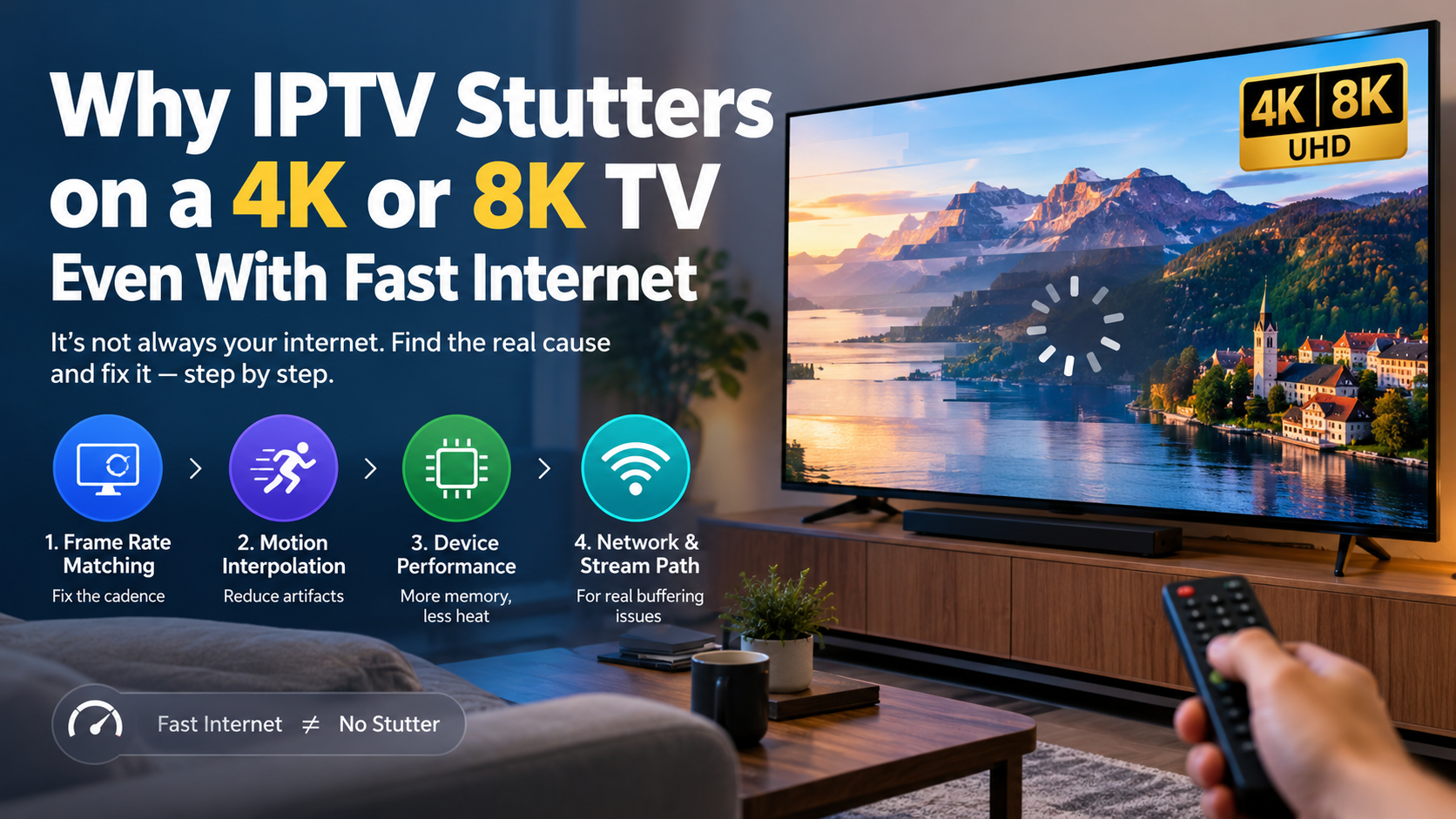
On a 4K or 8K TV, three checks are worth doing before you start changing DNS servers or buying faster internet:
Make sure the output refresh rate is appropriate for the content.
Reduce or disable aggressive motion processing.
Check whether the streaming device is running short on memory or getting too hot.
These are not the only possible causes. A bad stream, dropped frames, decoder problems, a faulty HDMI path, or network instability can also produce uneven playback. The useful part is that each one tends to leave a different pattern.
One distinction saves a lot of wasted troubleshooting: stuttering is not the same as buffering. If the image stops and a loading symbol appears, use the IPTV buffering troubleshooting guide instead. This article is about the picture continuing to play while motion looks jerky, uneven, or strangely processed.
Before changing anything, watch the same problem for a minute or two. Pay attention to when it happens and what the motion looks like.
Slow camera pans, football pitches, scrolling text, and other horizontal movement look uneven in a predictable way. The picture does not freeze, and changing channels may change the pattern.
That points toward frame pacing or cadence. The source frame rate and the display output rate are not lining up cleanly, or the device is converting between them.
The image can look unnaturally smooth, then break up around players, faces, goal posts, or other edges. You may see a faint trail or a short hitch even though the underlying frame is sharp.
That points toward motion processing on the TV. Modern sets can generate intermediate frames, but those estimates can create visible artifacts when the television cannot confidently track an object or scene change.
The first part of a stream looks fine. After a long session, menus become slower, audio may drift, or dropped frames become more obvious. A restart temporarily clears the problem.
That makes a device resource or thermal issue more likely. It is a clue, not absolute proof, because rebooting can also clear other temporary playback states.
That is usually buffering, not ordinary display stutter. Check whether it affects every channel or only particular streams, then follow a network and stream-path diagnosis instead.
| What you see | What it may indicate | First test | Where to go |
|---|---|---|---|
| Regular, repeating motion hitch | Frame pacing or cadence mismatch | Try content with a different frame rate | Fix 1 |
| Halos, shimmer, or artificial smoothness | Motion interpolation or related processing | Turn motion processing down and replay the same scene | Fix 2 |
| Fine at first, worse after a long session | Memory pressure or heat | Reboot and compare a fresh session | Fix 3 |
| Full freeze with loading indicator | Buffering or stream delivery issue | Test another channel and another device | Network troubleshooting |
That distinction matters because the wrong fix can make the picture look different without addressing the actual cause.
A speed test is useful, but it answers a narrower question than video playback does. It tells you how much throughput your connection can achieve under the conditions of the test. Video playback also depends on frame timing, decoding, rendering, and the path between the source and your screen.
A 200 Mbps result therefore does not rule out every type of playback problem.
There is also an important difference between judder, stutter, and buffering.
Judder is uneven frame timing, commonly associated with film or television content whose frame rate does not divide evenly into the display rate.
Stutter describes the visible unevenness of motion, which can also be related to frame hold time, dropped frames, or the way motion is processed.
Buffering happens when playback cannot maintain enough data ahead of the current position, causing a pause or loading indicator.
RTINGS separates these motion problems in its current TV testing, including frame-hold stutter, judder, and micro-judder.
The practical takeaway is simple: do not use a speed test as the only diagnostic tool.
Start here because it costs nothing and can remove a very specific type of choppy motion. For IPTV stuttering on a 4K TV, this is one of the easiest display-side checks to rule in or out.
A video may be encoded at 24, 25, 30, 50, or 60 frames per second, while a television is receiving an output signal at another refresh rate. The display can still show the content, but the conversion may produce uneven frame timing.
European live television often uses 50 fps, while many device interfaces are configured around 60 Hz. Converting 50 fps content to a 60 Hz output requires a cadence conversion rather than a simple one-for-one display.
You may notice this most clearly during wide football shots, camera pans, or scrolling graphics. The motion looks like it is being nudged forward in small, regular steps.
The same idea appears with 24 fps film content. Twenty-four does not divide evenly into 60, which is why 24 fps material sent through a fixed 60 Hz path can show the familiar 3:2 cadence. Modern televisions can often remove or reduce that judder when the source provides the right timing information.
Apple TV: Go to Settings > Video and Audio > Match Content, then enable Match Frame Rate. Apple says Apple TV can match supported content at 60, 50, 30, 25, and 24 fps, depending on the display and region. The screen may briefly go blank while the format changes.
Kodi: Open Settings > Player > Videos and find Adjust display refresh rate. Kodi provides options for changing the display rate when playback starts or stops, provided the hardware supports it. A short blanking period during a refresh-rate change is normal.
IPTV players: Look for settings such as Auto Frame Rate, Match Frame Rate, Match Refresh Rate, or Switch Display Refresh Rate. The wording varies by app and device, so check the player and device combination you actually use.
Fire TV and Android TV: Menus and frame-rate behaviour vary by model, operating system, firmware, and app. A setting being present at the system level does not necessarily mean that every IPTV player will use it.
A brief black screen or flicker when the output format changes is not automatically a fault. The television is switching display timing.
The useful test is not the black screen itself. The useful test is what the motion looks like after the switch.
Try one film or series channel and one live sports channel. If the rhythm of the motion changes when the output rate changes, frame pacing deserves further attention.
Set the device to the refresh rate that suits most of your viewing, then use the television's own film or cinema processing where appropriate.
For a lineup dominated by European live channels, 50 Hz may be the more natural base output. For North American content, 60 Hz is common.
There is no universal setting that is correct for every service, because the source mix matters.
Built-in TV apps can also be more limited than external streaming hardware. An external player may give you a frame-rate option that the TV's native IPTV app does not expose.
Our setup guides for Fire TV Stick, Android, Apple and iOS, and MAG boxes cover the common device paths.
If the frozen frame looks clean but movement develops halos, trails, or a strange wobble, the TV may be doing too much processing.
Motion interpolation works by estimating intermediate frames between the frames sent by the source. That can make low-frame-rate video look smoother, but it can also introduce artifacts when the television cannot confidently track an object or scene change.
Compressed IPTV can make those mistakes easier to notice because the image may already contain blocking, motion blur, or other compression artifacts.
| Brand | Common motion setting name | Practical first test |
|---|---|---|
| Samsung | Auto Motion Plus | Lower or disable Judder Reduction |
| LG | TruMotion | Try Cinema or Off, then compare |
| Sony | Motionflow | Reduce Smoothness and compare |
| TCL | Motion Clarity | Try Off or the lowest setting |
| Hisense | Motion Enhancement | Try Off |
| Panasonic | Intelligent Frame Creation | Try Off or Minimum |
| Philips | Perfect Natural Motion | Try Off |
Exact menus vary by model and software, so treat these as starting points rather than universal presets.
Some TVs include separate settings for film detection or cinema processing. Names such as Real Cinema, CineMotion, Film Mode, or similar controls can behave differently from motion interpolation.
That distinction matters because one setting may be helping the TV handle film cadence while another is actively creating new frames.
Your goal is not to turn every motion-related option off blindly. Your goal is to remove the processing that is creating the artifact you can actually see.
Features with names such as Clear Motion, LED Clear Motion, Clearness, or Black Frame Insertion use a different technique. They can reduce the appearance of blur, but they may also reduce brightness or introduce flicker depending on the TV and content.
If your complaint is a faint flicker that looks like repeated motion breaks, test with this feature disabled before judging the other motion settings.
Pause on a moving scene.
If the paused image itself contains obvious blocking, smearing, or low detail, the source may be the weak point.
If the frame looks clean but playback becomes awkward only while objects move, focus on frame pacing, panel response, or motion processing instead.
TV response time also affects perceived motion. Very fast response can make low-frame-rate material appear more stuttery because each frame remains visible until the next one arrives.
That is one reason a newer, sharper TV can sometimes make a motion problem easier to notice rather than hiding it.
When playback is good for a while and then deteriorates, the streaming device deserves attention.
This is especially relevant to older sticks, entry-level boxes, and devices that are already carrying a large app load.
RAM and storage are different resources. A device can have plenty of free storage while still running short on working memory during playback.
Background services, app processes, guide data, previews, and other tasks all compete for system resources. The exact RAM available varies widely by device generation.
Do the simple checks first:
Restart the device and watch the same channel for the same amount of time.
Remove apps you no longer use.
Disable unnecessary home-screen previews or autoplay features.
Reduce an oversized timeshift or playback buffer if the player gives you that option.
Keep the channel list manageable if the app rebuilds a very large programme guide at launch.
Check that hardware decoding is enabled where the player provides that control.
Keep enough free storage for normal cache and system activity.
A restart that consistently restores smooth playback is useful evidence of a device-side problem, but it does not identify memory or heat by itself.
Streaming hardware trapped behind a hot TV or inside a poorly ventilated cabinet can become less stable during a long session.
Pay attention to the timing. If stutter becomes noticeably worse after thirty or sixty minutes, compare the device in two conditions: its normal position and a cooler, better-ventilated position.
Do not use surface temperature alone as proof of throttling. Device enclosures can feel warm during normal operation, and different hardware has different thermal limits.
The useful signal is whether better airflow changes the symptom.
If you suspect the device, keep everything else the same.
Restart it. Use the same app. Play the same channel. Note how long it takes for the problem to appear.
Then repeat the test after closing unnecessary apps and improving ventilation.
If the timing changes significantly, the device deserves more investigation. If it does not, move back up the chain and test the source, display timing, and network path.
8K adds another layer because the display chain has to carry higher-resolution output at the selected refresh rate.
Do not assume that an 8K television automatically means every input, cable, switch, receiver, and soundbar in the chain supports every mode the panel can display.
For high-bandwidth formats, the port capability matters. HDMI 2.1 provides a 48 Gbps raw link rate, but the actual picture mode depends on resolution, refresh rate, chroma format, bit depth, compression, and the devices connected at both ends.
One important distinction: 8K60 10-bit 4:2:0 does not inherently require DSC simply because it is 8K. Using active-picture arithmetic, the format is around 30 Gbps before blanking and transport overhead. Whether a particular setup supports it is still a hardware and compatibility question.
Check the television manual and the specifications for the source device, cable, AV receiver, and HDMI switch.
Also check which HDMI input supports the television's highest-bandwidth mode. Some sets do not provide identical capabilities on every port.
It can.
An 8K display has to scale lower-resolution content unless the source is genuinely native 8K. That extra processing can expose weaknesses that were less obvious on a 1080p or 4K screen.
But the important distinction is this: resolution does not determine frame pacing.
A 4K stream shown at the wrong cadence can look jerky on a 4K TV. The same motion can still look jerky after an 8K television upscales it. The larger, sharper panel may simply make the uneven movement easier to notice.
It is also worth treating "8K IPTV" labels carefully. A service may deliver a mixture of native 8K, 4K, and lower-resolution sources depending on the channel or title. The display resolution alone does not tell you the native resolution of the source.
Our guides to 8K resolution, 8K TV viewing, and 4K vs 8K explain the practical differences in more detail.
Bandwidth still matters, just not as the first diagnostic for every kind of stutter.
There is no single bitrate standard for IPTV. The actual requirement changes with resolution, codec, frame rate, HDR, compression settings, and the provider's encoding choices.
As a practical starting point:
| Content | Rough planning range | What matters alongside speed |
|---|---|---|
| 1080p | Around 5–10 Mbps | Stable delivery and low congestion |
| 4K | Around 15–30 Mbps | Consistent throughput and device decoding |
| High-bitrate 4K/HDR | Often 20–40+ Mbps | Headroom for bitrate spikes |
| 8K | Highly variable | Source bitrate, decoder capability, and the full HDMI/display chain |
These are working ranges, not specifications. A well-encoded 4K stream can require less bandwidth than a poorly compressed one at the same resolution.
A connection that is comfortably faster than the stream can still have trouble when another problem sits elsewhere in the playback chain.
That is why "I have 500 Mbps" does not, by itself, settle a motion complaint.
You do not need to change ten settings at once. Five observations are more useful.
A repeated rhythm points toward cadence or frame pacing. Random interruptions make the stream, device, or network more suspicious.
Try a film channel, a live sports channel, and a different type of programme. If one type of content looks much worse, frame rate and motion processing deserve attention.
A clean start followed by gradual deterioration is a useful clue for the streaming hardware.
If the TV app stutters but an external device handles the same service cleanly, the TV's app environment becomes part of the diagnosis.
Our Smart TV and Windows and Mac guides cover alternative playback routes.
If two devices reproduce the same channel problem, look upstream at the stream and network path. If only one device does it, concentrate on that device first.
For a full freeze or loading circle, return to the IPTV buffering guide.
Because bandwidth is only one part of playback. The output refresh rate, frame cadence, motion processing, decoder performance, memory, temperature, and source quality can all affect how motion looks.
Not exactly. Judder usually refers to uneven frame timing caused by cadence conversion, especially with 24 fps content. Stutter is a broader description of choppy or uneven motion and can have several causes.
It is worth testing with motion interpolation reduced or disabled when you see halos, shimmer, unnatural smoothness, or processing-related hitches. Some TVs handle difficult content better with a moderate setting, so compare the same scene rather than assuming one value is correct for every model.
No. Support depends on the hardware, operating system, and player. Apple TV and Kodi document specific frame-rate matching controls, while other devices may expose the feature differently or not at all.
Thermal problems can cause performance degradation on some devices, but you should treat heat as a hypothesis rather than diagnosing it from touch alone. Compare playback before and after improving airflow and look for a repeatable change.
Upscaling and the larger, sharper display can make motion artifacts, compression defects, and uneven cadence easier to notice. The television is not necessarily creating the original problem.
Not as a universal requirement. Many 4K streams operate within a much lower range, but the provider's bitrate and encoding quality vary. A stable connection with reasonable headroom is more useful than chasing a large headline speed.
Check the output refresh-rate or frame-rate matching option, then replay the same scene with motion interpolation reduced. If the issue appears only after a long session, investigate the streaming device and its airflow.
IPTV Buffering With Fast Internet: What Else It Could Be for freezes and loading circles.
Why Does My 4K TV Look Worse Than HD? 12 Fixes for compression and picture-quality problems.
Why Is My 4K TV Only Showing 1080p? 9 Fixes for output-resolution issues.
My IPTV Setup on a Firestick: What I Would Change for hardware and playback setup.
Apple Support: Match content frame rate on Apple TV
Kodi Wiki: Player video settings
RTINGS: Stutter testing
RTINGS: Judder testing
RTINGS: Motion interpolation
Amazon Developer: Fire TV device specifications
HDMI official specification information
Waveform: Bufferbloat and latency test
When IPTV looks choppy on a 4K or 8K TV but your internet connection is fast, start by identifying the type of motion problem rather than changing random network settings.
For regular judder-like motion, check frame-rate matching. For halos and artificial smoothness, reduce motion interpolation. For playback that degrades after a long session, examine the streaming device, memory, and airflow.
And when the picture actually stops with a loading symbol, switch tracks completely: that is buffering, and the network or stream path becomes the more useful place to troubleshoot.
Once the playback chain is stable, you can judge picture quality and service performance much more fairly. For viewers looking for a higher-resolution lineup, the lotin8k subscription plans are the relevant starting point, while the reseller panel is intended for users managing multiple screens or subscriptions.


